
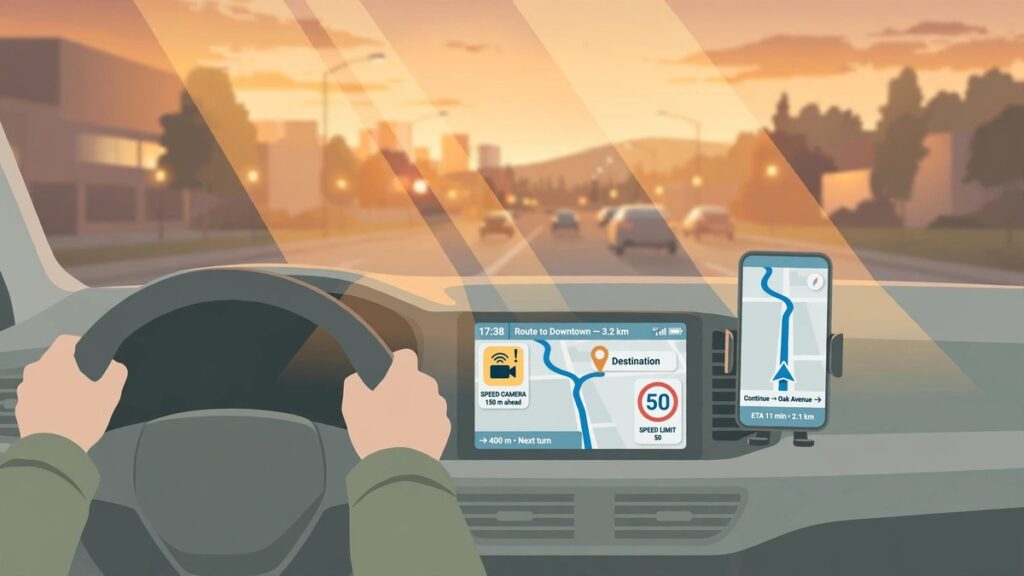
Android Auto can warn you about speed cameras ahead, but the switch lives inside your navigation app, not in Android Auto itself, Engadget explained in a guide published on 28 November 2026. In Google Maps the setting sits under Settings, then Navigation, while Waze offers finer control over five camera types.
In Google Maps, open the app on your phone, tap your profile photo at the top right, and go to Settings, then Navigation. There, enable the setting labelled Get alerts for reported incidents and other conditions that may impact your drive. Carcody adds that you need an active turn-by-turn route before reports such as mobile speed cameras appear, and that during navigation you can tap the Report button to flag a mobile speed camera yourself, but only when it is safe to do so.
Waze gives you more control. Engadget explains that you open Waze and go to Settings, then Alerts and reports, then Reports, then Cameras, where you can configure alerts for five different camera types, including speeding, red light and mobile police cameras. Those choices apply automatically whenever you use Waze on your car's display through Android Auto. A third route is a dedicated app such as Smart Radar, which Smart Radar says must be installed from Google Play and given background location permission before it will appear on the car screen.
Why it matters
The reason the setting is buried in the phone app is that Android Auto is a projection, not a system of its own. Your phone does the work and the car screen only shows it, so the alert switch has to be flipped on the handset first. Engadget notes that the car display automatically brings up the last-used navigation app, which means a one-time setup while parked carries over to every later drive. The practical lesson is to do all of this before you start the engine, because hunting through phone menus on the move is exactly the distraction these features are meant to reduce.
Choosing between Google Maps and Waze is the first real decision. Engadget reports the general consensus is that Google Maps does not warn about speed cameras and other enforcement measures as frequently as Waze, so drivers who care most about camera alerts should open Waze on Android Auto instead. Waze lets you pick from five camera types, including speeding, red light and mobile police cameras, while Maps offers a single incident-alert switch. Maps is the simpler, quieter option for drivers who want basic warnings without extra configuration, and both apps are free, so switching costs nothing but a few minutes of setup.
Three features get confused here, and Carcody is clear that they are separate. Camera and incident alerts are crowd-sourced reports that appear during an active route. Speed-limit warnings show the mapped legal limit and may warn when you exceed it, but the map data can be wrong or out of date. The speedometer is only an on-screen speed readout, and Google says it is informational only. Turning on the speedometer does not turn on camera alerts, and seeing a speed-limit sign does not mean a camera report exists. Engadget adds a useful detail: larger-than-stock tyres can skew a car's own speedometer, with a five percent larger tyre circumference making the gauge read 105 mph instead of 100 mph, which is where the GPS speedometer earns its keep.
The limits matter as much as the setup. These warnings come from other drivers volunteering reports, so they cannot warn about every enforcement device on the road. Carcody warns that a fixed or permanent camera might not be represented in Maps data at all, and that the absence of an icon should be read as no report in Maps, not proof that no camera is present. Coverage and incident types also vary by country. And while no extra hardware is needed, Engadget notes that a radar detector is not legal in some jurisdictions, so the phone-based approach is the safer route for most drivers.
Dedicated camera apps are the third option for drivers who want more than Maps or Waze offer. Smart Radar, for example, is built specifically for this job: it shows your speed, the limit, the camera type, the distance to it and the direction of enforcement, and it keeps running in the background while navigation stays on the car screen. There are catches worth knowing. Android Auto only lists apps installed from Google Play, so an APK downloaded from a website will not appear on the car display, and the app needs background location permission or it cannot warn you. For drivers who cover long distances every day, that trade-off can be worth it, but for occasional drivers the built-in Maps or Waze setting is enough.
One dated note is worth keeping in mind. Engadget published its guide on 28 November 2026 and Carcody updated its guide about a week earlier, so the menu paths in this article reflect the apps as they stand now. Navigation apps rename menus in updates, so if a path looks different on your phone, use the in-app search to find the alert setting rather than assuming it has disappeared. Set everything up while parked, check that warnings appear on a familiar route first, and never handle the phone while the car is moving.
What to watch next
Watch whether Google closes the gap between its two apps. If Maps gains Waze-style granular camera controls, many drivers will never need to switch apps, but until then Waze remains the stronger choice for anyone who wants detailed camera warnings on Android Auto.
Watch the rules where you drive. Camera-warning features and apps are restricted in some countries, and coverage varies widely, so check local law before relying on these alerts abroad, and always treat a missing warning as no report rather than proof the road is clear.
Frequently asked questions
How do I turn on Android Auto speed camera warnings?
In Google Maps on your phone, tap your profile photo, go to Settings, then Navigation, and enable Get alerts for reported incidents and other conditions that may impact your drive. In Waze, go to Settings, then Alerts and reports, then Reports, then Cameras, and choose the camera types you want.
Does Google Maps warn about speed cameras in Android Auto?
Yes, if incident alerts are switched on and you are navigating an active route. But Engadget reports that Google Maps tends to warn about speed cameras less frequently than Waze, so Waze is the stronger choice if camera alerts are your priority.
Is Waze better than Google Maps for speed camera alerts?
For most drivers, yes. Waze offers more granular control, with five camera types to choose from, and it can also alert you when you exceed the speed limit by a set threshold, such as five miles per hour over the limit.
Do I need a radar detector for Android Auto speed camera warnings?
No. The warnings come from driver reports inside Google Maps and Waze, so no extra hardware is needed. Engadget notes that a radar detector is not legal in some jurisdictions, which makes the phone-based approach the safer option.