Splitting your Starlink Wi-Fi into separate 2.4GHz and 5GHz networks can make your connection faster, because it stops devices from settling on the slower band. In the Starlink app, choose Add Network, turn on Split Network, and name each band. The trade-off is shorter range on 5GHz and more work managing two networks.
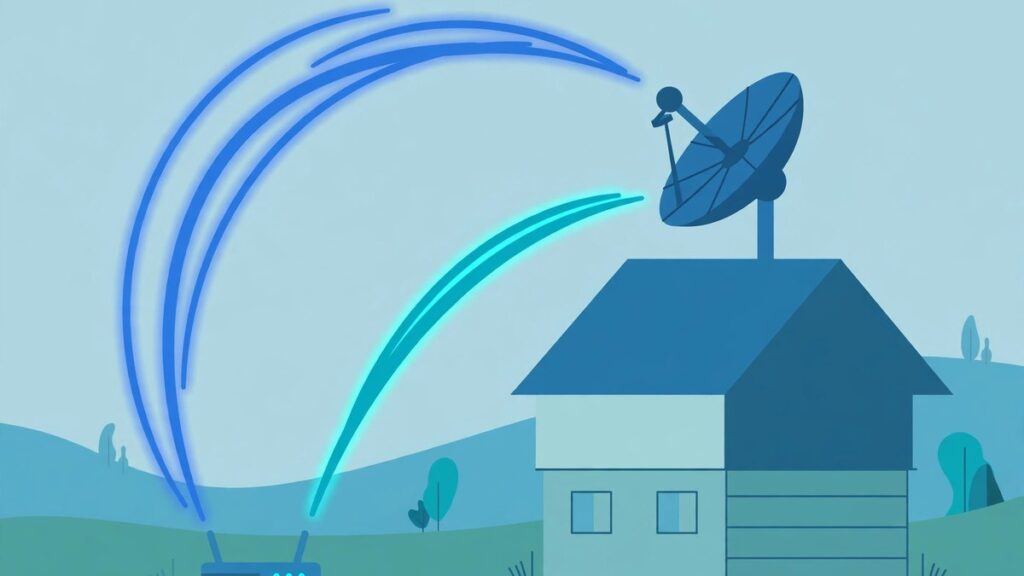
Most home routers broadcast one network name and let each device pick a band, but the choice is often a bad one. Engadget reports that the 5GHz band is inherently faster than 2.4GHz, with shorter wavelengths and more non-overlapping channels, so forcing capable devices onto 5GHz can produce noticeable speed gains. The catch is range: Engadget puts 2.4GHz reach at roughly 150 feet indoors, against 50 to 75 feet for 5GHz, which also struggles more with walls. Starlink's own help pages confirm the same split, explaining that 2.4GHz works at longer range and is slower, while 5GHz is faster and works best close to the router.
There are real downsides to splitting. Devices on different network names may not be able to talk to each other, which can break smart-home setups, and low-power gadgets such as many Wi-Fi light bulbs only work on 2.4GHz. Reassigning every device to a new network is also a chore, and Starlink's bundled hardware does not support the newer 6GHz band even when it has Wi-Fi 7. Engadget's advice is blunt: if you are not hitting a performance problem, leave the setting alone.
Why it matters
The reason this small setting matters is that satellite broadband's weakest link is often inside the house, not in space. Starlink's satellites deliver a signal to the dish, but the last few metres to a laptop or television run over ordinary Wi-Fi, and a device camped on the congested 2.4GHz band can waste much of what the satellite delivered. Splitting the bands is really a way of taking a decision away from the router's automatic band steering, which is designed for convenience rather than speed, and making it yourself. For households where Starlink is the only broadband option, that control is worth more than it would be on a fibre connection with speed to spare.
That is the core of the Starlink Wi-Fi speed question: it is not one fix but a trade between speed, range and simplicity. A laptop streaming video ten feet from the router will almost always do better pinned to 5GHz. A smart bulb at the far end of the garden, or a phone moving between rooms, will do better left on 2.4GHz. The mistake is treating the split as a magic switch. It only helps when the bottleneck is the local radio link, and Starlink's own troubleshooting guidance says to test first: run the app's advanced speed test, check whether the slowdown is between the device and the router or between the router and the internet, and only then change settings.
There is also a broader context. Starlink has had a rough year in the headlines, with reports of slowdowns in Ukraine and the glare that comes with its owner's politics, yet its subscriber base keeps growing precisely because for many rural homes there is no alternative. Practical guides like this one matter more than the arguments about the company, because they decide whether a family paying a premium for satellite internet actually gets what they paid for. The lesson generalises well beyond Starlink: every mesh and router sold today hides the same band-steering compromise, and the users who understand it get faster internet from hardware they already own.
Why do so many people never touch this setting? Because routers are sold as appliances that should just work, and the industry has spent a decade hiding radio details behind a single network name. That was a reasonable choice when most devices were laptops near the router, but homes now hold dozens of connected gadgets with wildly different needs, from doorbells to game consoles. Splitting the bands is a small act of taking the network back from its defaults, and it is a useful first step before spending money on mesh nodes, extenders or a third-party router in bypass mode, all of which Starlink's help pages mention as further options.
What to watch next
Watch whether Starlink adds 6GHz support to future router hardware, which would change the maths again by adding a third, very fast, very short-range band. Also watch the app itself: the exact menu path for splitting has already changed between router generations, so guides written for one model may not match another.
And watch the wider pattern of satellite broadband maturing into ordinary infrastructure. As Starlink adds customers, peak-hour congestion and the satellite link itself will matter more than the home network, and the next round of speed advice will be about dish placement and plan choice rather than Wi-Fi settings.
Frequently asked questions
Does splitting Starlink Wi-Fi actually make it faster?
It can, for devices that support 5GHz and sit near the router, because 5GHz is faster and less congested than 2.4GHz. It will not help devices far from the router, and it cannot speed up the satellite link itself, so test with the app’s advanced speed test before and after.
How do I split the network in the Starlink app?
Open the Starlink app, go to Settings, then Router and Networks, select your Wi-Fi network and turn on the split option. Give each band a distinct name, such as adding -2.4 and -5, save the change and reboot the router if the app asks.
Will my smart home devices still work after splitting?
Most will, but check first. Many low-power devices, such as smart bulbs, only work on 2.4GHz, so connect them to the 2.4GHz network. Devices on different network names can also struggle to talk to each other, which may break automations.
Should I split my Starlink network if everything already works?
No. If you have no speed or reliability problem, the unified network is simpler and lets devices switch bands automatically as you move around the house. Split only when you have a specific device that needs to stay on 5GHz.